# 1.0 Installation
---
##### **Materials / Pre-Setup:**
- USB Flash drive
- Machine with [minimum requirements](https://wiki.raspberrypiclub.org/books/how-to-proxmox/page/what-is-proxmox)
- *To make a Proxmox Cluster - 2 minimum, but 3 machines are preferred (for fault tolerance and high availability)*
- Understand the schema of your network *(i.e. IP subnet, default gateway, etc.)*
---
##### **Installing Proxmox**
1. Download [Proxmox Virtual Environment](https://www.proxmox.com/en/products/proxmox-virtual-environment/overview) onto any system that you're working with
2. Create a bootable USB download using a USB Creation Tool (multiple approaches stated below)
- [Rufus](https://rufus.ie/en/) (Windows)
- Ventoy (Windows, macOS, Linux)
- UNetbootin (Windows, macOS, Linux)
**EXAMPLE USING RUFUS:**
****
3. Insert the newly created USB bootable into the machine that will act as a designated Proxmox server and proceed with installation as you would any other OS installation (may have to change BIOS settings to boot to USB first)
---
##### **Installer Configurations**
Once you get to the Proxmox Installer, you'll be prompted with multiple things - examples/suggestions are given below:
- Choose "Install Proxmox VE (Terminal UI)"
- Hostname (FQDN): \[PVE NAME\].local *(use different names if you're trying to cluster - doesn't matter what you name it)*
- IP Address (CIDR): \[IP ADDRESS CIDR\] *(e.g. 10.0.0.100/16)*
- Gateway Address: \[DEFAULT GATEWAY\] *(e.g. 10.0.0.1)*
- DNS Server Address: \[DNS SERVER\] *(i.e. 10.0.0.1 or public DNS servers: Cloudflare - 8.8.8.8, Google - 1.1.1.1)*
**EXAMPLE OF WHAT IT WILL LOOK LIKE AFTER CONFIGURATIONS:**
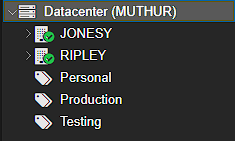
*In this Proxmox example, the node names follows a theme from the Alien franchise*
*Last Updated: 2/22/2025
Contributors: Lilian, Vivian*