How to: SSH
- What is SSH?
- 1.0 Generate and Add SSH Keys to Github
- 2.0 Import SSH keys (on Debian Linux)
- 3.0 Using SSH
- 4.0 SSH Configuration File
What is SSH?
Introduction
SSH (Secure Shell) is a cryptographic network protocol that enables secure communication between computers over a potentially unsecured network, like the internet. It is primarily used to remotely access and manage servers, devices, and systems. (ง ื▿ ื)ว
Capabilities of SSH:
-
Encrypted Communication: SSH ensures that data sent between the client (your computer) and the server is encrypted, which protects it from eavesdropping, tampering, or unauthorized access.
-
Authentication: SSH uses key-based or password-based authentication to verify the identity of the client and server before establishing a connection. The most secure form is public-key authentication, where a private key on the client is matched with a public key stored on the server.
-
Command Execution: SSH allows users to execute commands remotely on a server. For example, you can manage files, install software, or configure system settings as if you were physically at the server, all through the command line.
Last Updated: 2/20/2025
BY: Lilian
1.0 Generate and Add SSH Keys to Github
*Any confusion on command syntax/structure can be clarified in Legend
-
On device you want to ssh with, open a shell (e.g. PowerShell), enter the command below:
-
Just press Enter for the prompts
-
Make sure to note where the SSH keys are being stored
-
e.g.) C:\Users\[USER]\.ssh\
-
-
ssh-keygen -t ed25519
-
Paste the public key into user’s Github profile
-
Title can be anything (should note what machine it belongs to)
-
Key type: Authentication Key
-

You should now be able to SSH into the system that has your public keys with machines that hold the corresponding private key!
Last Updated: 2/22/2025
Contributors: Lilian, Vivian
2.0 Import SSH keys (on Debian Linux)
*Any confusion on command syntax/structure can be clarified in Legend
Importing Personal SSH Keys
Applicable to Personal / Home Lab setup
-
Import the user’s GitHub keys so they can ssh from their computer:
-
If any new SSH keys from other devices are added, this command needs to be done again
-
ssh-import-id-gh [GITHUB USERNAME] Importing Other User's SSH Keys
Applicable to the Raspberry Pi Club servers - allowing other trusted users ssh access to a system requires more steps:
-
In the sys-admin’s shell, ssh into the system (e.g. node, VM, etc.) you want to give access to, and then escalate to superuser:
sudo su --
Create the new user and then add them to sudoers group:
- Set an easy temporary password for the user (e.g. password)
adduser [USER]
usermod -aG sudo [USER]-
Switch the newly created user account:
sudo su [USER] --
Import the user’s GitHub keys so they can ssh from their computer:
ssh-import-id-gh [GITHUB USERNAME]-
Have user ssh into the system and change their password into something secure:
- If any new SSH keys from other devices are added, this command needs to be done again
passwdLast Updated: 2/22/2025
Contributors: Lilian, Vivian
3.0 Using SSH
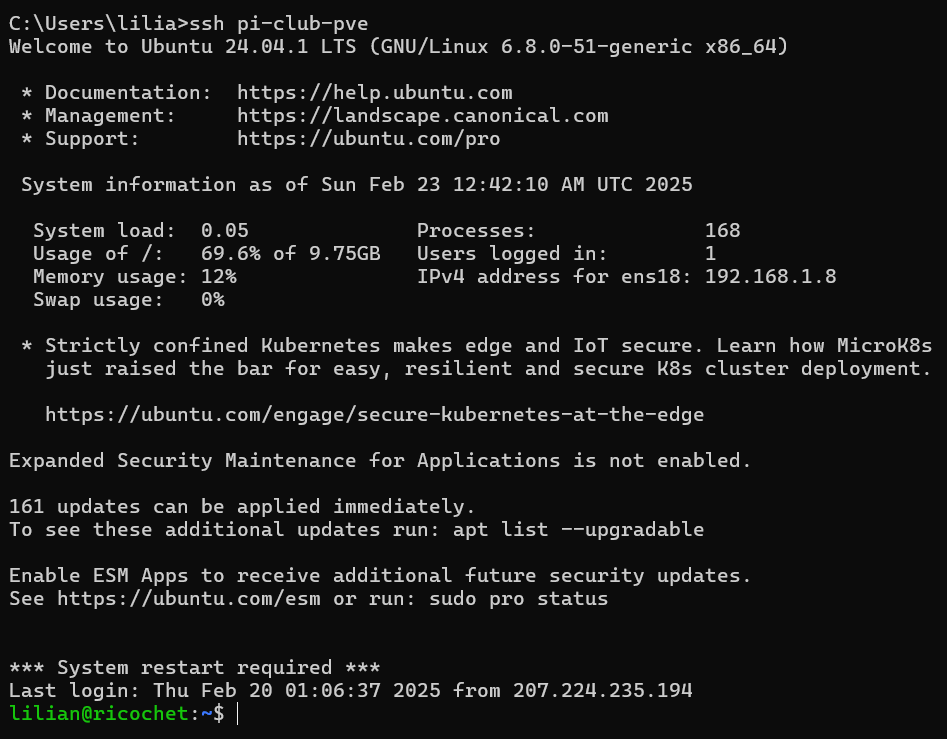
SSH into a System
- Open up a new shell (e.g. PowerShell)
- Type in the following:
ssh [USERNAME]@[IP ADDRESS]OR
ssh [HOST]IMAGE SHOWING A SUCCESSFUL SSH ACCESS:
4.0 SSH Configuration File
The SSH configuration file is used to control the behavior of the SSH client and server, respectively. Client configuration (which is the focus for this document) allows users to define preferences for SSH connections, such as default usernames, key files, ports, and more.
Creation
- Locate the .ssh folder
- Create a new file in the folder and rename it "config" (make sure to not have any extension)
Common Directives
1. Defining Hosts
The Host directive allows users to create shortcuts for SSH connections.
Host [SERVER]
    HostName [IP ADDRESS]
e.g. Instead of typing ssh user@[IP ADDRESS], users can simply type: ssh server-name
2. Specifying a Username
If the remote username is different from the local one.
Host [SERVER]
    User [USER]
e.g. Now, ssh myserver will default to myuser@[IP ADDRESS]
3. Setting a Custom SSH Port
By default, SSH uses port 22, but some servers use custom ports for security.
Host [SERVER]
    Port [PORT]
e.g. Now, ssh myserver will connect to 10.10.1.100 on port 1666
4. Local Port Forwarding
Allows a user to securely tunnel traffic from a local machine to a remote server through SSH.
LocalForward [local_port] [destination_host]:[destination_port]EXAMPLE:
Host pi-club-is-cool
    HostName raspberrypiclub.org
    User lilian
LocalForward 8006 10.10.10.50:8006- When you connect using
ssh pi-club-is-cool, SSH will:- Log in to
raspberrypiclub.orgas userlilian - Forward your local port
8006to192.168.1.18:8006through the SSH connection
- Log in to
- Any requests made to localhost:8006 on your local machine will be securely sent to 10.10.10.50:8006 via
raspberrypiclub.org
Last Updated: 3/5/2025
Contributed by: Lilian